> ## Documentation Index
> Fetch the complete documentation index at: https://braintrust.dev/docs/llms.txt
> Use this file to discover all available pages before exploring further.
# Iterate in playgrounds
> Prototype prompts, swap models, and test scorers interactively. Validate ideas quickly in the browser before committing to a full evaluation experiment.
export const feature_0 = "Playground annotations"
export const verb_0 = "are"
Playgrounds provide a no-code workspace for rapidly iterating on prompts, models, scorers, and datasets. Run full evaluations in real-time, compare results side-by-side, and share configurations with teammates.
## Create a playground
Go to [** Playgrounds**](https://www.braintrust.dev/app/~/playgrounds) and select **Create empty playground** or **+ Playground**.
A playground includes:
* Tasks: One or more prompts, workflows, or scorers to evaluate
* Scorers: Functions that measure output quality
* Dataset: Optional test cases with inputs and expected outputs
## Add tasks
Tasks define what you’re testing. Select **+ Task** and choose a type:
Configure AI model, prompt messages, parameters, tools, and MCP servers. This is the most common task type for testing model responses. See [Write prompts](/evaluate/write-prompts) for details.
When you select a saved prompt, hover the row to reveal a version submenu with **Latest version** plus any historical versions, so you can add a specific past version. Prompts with only one version are directly selectable.
Chain multiple prompts together to test complex workflows. Workflows allow you to create multi-step processes where the output of one prompt becomes the input for the next.
Workflows are in beta. They currently only work in playgrounds and are limited to prompt chaining functionality. If you are on a self-hosted deployment, workflows are available starting with `v0.0.66`.
To create a workflow, select **+ Workflow** and create or select prompts to chain together. The prompts run consecutively, with each prompt receiving the previous prompt's output as input.
**Variables in workflows:**
Workflows use templating to reference variables from datasets and previous prompts:
* **First prompt node**: Access dataset variables directly using `{{input}}`, `{{expected}}`, and `{{metadata}}`. For consistency, you can also use `{{dataset.input}}`, `{{dataset.expected}}`, and `{{dataset.metadata}}`.
* **Later prompts**: Access the previous node's output using `{{input}}`. If the previous node outputs structured data, use dot notation like `{{input.bar}}`.
* **Global dataset access**: The `{{dataset}}` variable is available in any prompt node to access the original dataset values (available in self-hosted deployments starting with `v1.1.1`).
Run scorers as tasks to validate and iterate on them before using them to evaluate other tasks. See [Write scorers](/evaluate/write-scorers) for details.
Scorers-as-tasks are different from scorers used to evaluate tasks. You can even score your scorers-as-tasks.
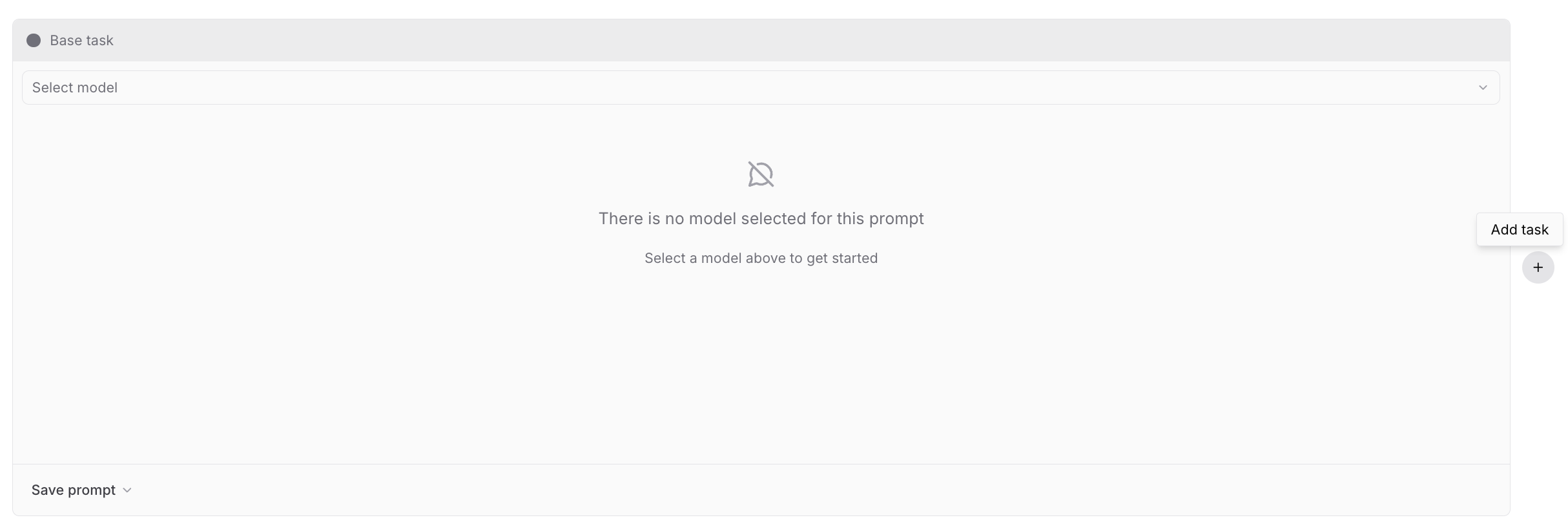
An empty playground prompts you to create a base task and optional comparison tasks. The base task is the source for diffing outputs.
Configure [AI providers](/admin/ai-providers) in organization settings, or configure them inline directly from the playground when you first run it.
Remote evals and sandboxes are complex tasks that you can't express as a prompt. They are evaluated on your own infrastructure or in a sandbox, and the results are streamed back to the playground.
See [Test complex agents](/evaluate/remote-evals) for details.
## Add scorers
Scorers quantify output quality and run automatically after each generation. To add a scorer, select **+ Scorer** and choose from:
* **[Autoevals](/evaluate/autoevals)**: Pre-built scorers for common tasks like factuality, semantic similarity, and format validation. Ready to use with no configuration.
* **[LLM-as-a-judge](/evaluate/llm-as-a-judge)**: Evaluate outputs using a language model and natural language criteria. Good for subjective qualities like tone or helpfulness.
* **[Custom code](/evaluate/custom-code)**: Write TypeScript or Python scoring logic directly in the browser editor for rule-based or calculation-based checks.
You can also select any scorer or classifier saved to your project. Hover a saved scorer's row to reveal a version submenu with **Latest version** plus any historical versions, so you can add a specific past version. Scorers with only one version are directly selectable.
To view a [classifier](/evaluate/write-scorers#classifiers)'s result in a playground, open the row's trace and find the classifier span, which shows the chosen label and the model's reasoning.
## Add datasets
Link a dataset to test multiple inputs at once. Without a dataset, the playground runs a single evaluation. With a dataset, it runs a matrix of evaluations across all test cases.
You can select an existing dataset or create a new one inline without leaving the playground. When creating a dataset, you have two options:
* **Upload CSV/JSON**: Import test cases from a file
* **Empty dataset**: Create a blank dataset to populate manually later
Once linked, you'll see a row for each dataset record.
Reference dataset fields in prompts using template variables:
```
Analyze this input: {{input}}
Expected output: {{expected}}
User category: {{metadata.category}}
```
The playground supports [Mustache and Nunjucks templating](/evaluate/write-prompts#use-templating). Access nested fields like `{{input.formula}}`.
### Image attachments
When a dataset variable contains an array of attachments, the playground expands it into one image part per item. Add an **image** content part to your prompt and enter the variable name (e.g. `{{images}}`).
Array items can be Braintrust attachments, inline attachments, or plain URL strings.
### Scorers-as-tasks
When evaluating scorers, dataset inputs should match scorer convention: `{ input, expected, metadata, output }`. These fields are hoisted into global scope for easy reference.
Example scorer prompt:
```
Is {{output}} funny and concerning the same topic as {{expected}}?
```
Example dataset row:
```json theme={"theme":{"light":"github-light","dark":"github-dark-dimmed"}}
{
"input": {
"output": "Why did the chicken cross the road? To get to the other side!",
"expected": "Why's six afraid of seven? Because seven ate nine!"
},
"expected": {
"choice": 0,
"rationale": "Output is a clichéd joke about a different topic."
}
}
```
## Run evaluations
Select **Run** (or Cmd/Ctrl+Enter) to run all tasks and dataset rows in parallel. Results stream into the grid below.
You can also:
* Run a single task
* Run a single dataset row
* View results in grid, list, or summary layout
For multimodal workflows, supported attachments will have a preview shown in the inline embedded view.
UI experiments run without a time limit on cloud and on self-hosted deployments running data plane v2.0 or later.
## View traces
Select a row to compare traces side-by-side and identify differences in outputs, scores, metrics, and inputs:
From this view, select **Run row** to re-run a single test case.
## Annotate outputs
{feature_0} {verb_0} only available on [Pro and Enterprise plans](/plans-and-limits#plans).
Annotate multiple outputs across many prompts using quick thumbs up/down reactions and free text comments, and then let Loop suggest prompt improvements based on your feedback.
To annotate and optimize:
1. Select or in a result cell.
2. Add a free text comment and click **Save**.
3. Repeat across any outputs you want to flag.
4. Select **Optimize** in the toolbar to open Loop with your annotations as context.
5. Review Loop's prompt suggestions and apply changes to iterate.
To remove all annotations from the current run, select **Clear feedback** in the toolbar.
## Compare with diff mode
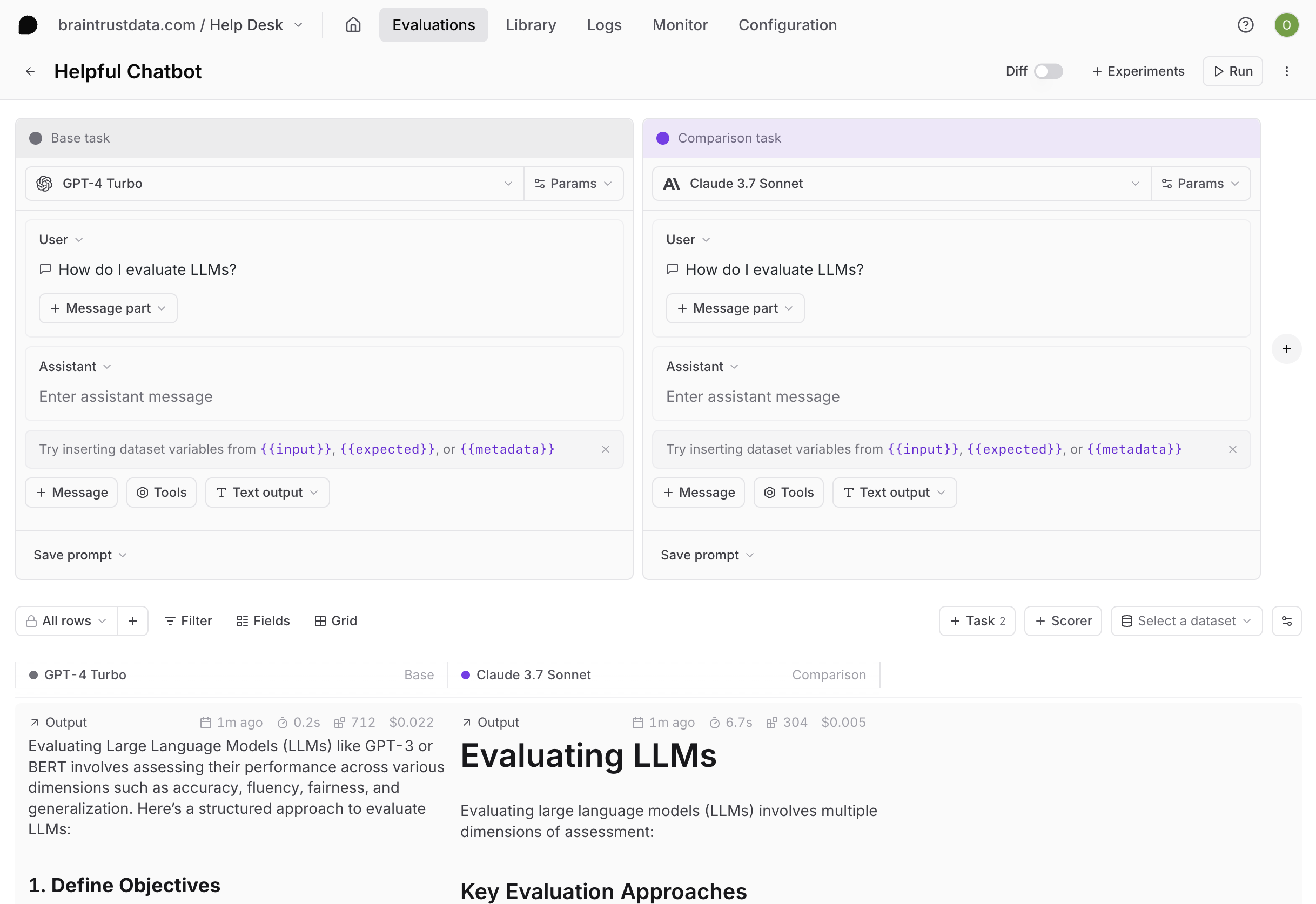
Enable the diff toggle to visually compare variations across models, prompts, or workflows:
Diff mode highlights:
* Output differences between tasks
* Score changes
* Timing and token usage variations
When comparing against a base task, each comparison task's column header also shows a comparison grade pill (Improvement, Regression, Tradeoff, or Tie). See [Assess overall impact](/evaluate/compare-experiments#assess-overall-impact) for the grading rubric.
## Save as experiment
Playground runs overwrite previous results on each run. When you've found a configuration worth keeping, select **+ Experiment** to promote it to an immutable snapshot. See [Run experiments](/evaluate/run-evaluations#promote-from-a-playground) for details.
## Share playgrounds
Collaborate by sharing playground URLs with teammates. They'll see the same configuration and can run their own evaluations or make changes. Playgrounds automatically synchronize in real-time.
Your collaborators must be members of your organization to view the playground. You can invite users from the settings page.
## Best practices
**Start simple**: Test one prompt or model first. Add comparisons once the base works.
**Use representative data**: Build datasets from production logs or known edge cases.
**Compare systematically**: Change one variable at a time (model, temperature, prompt wording) to isolate effects.
**Look for patterns**: Group by metadata fields to see which input types cause issues.
**Iterate quickly**: Playgrounds excel at rapid experimentation. Save experiments only when you need permanent records.
## Advanced options
### Append dataset messages
You may have additional messages in a dataset that you want to append to a prompt. This option lets you specify a path to a messages array in the dataset. For example, if `input` is specified as the appended messages path and a dataset row has the following input, all prompts in the playground will run with additional messages:
```json theme={"theme":{"light":"github-light","dark":"github-dark-dimmed"}}
[
{
"role": "assistant",
"content": "Is there anything else I can help you with?"
},
{
"role": "user",
"content": "Yes, I have another question."
}
]
```
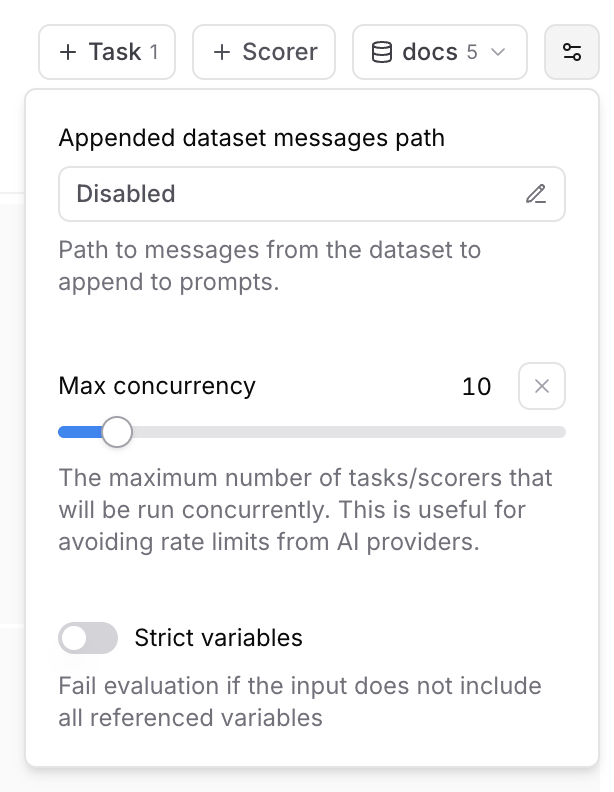
To append messages from a dataset to your prompts, open the advanced settings menu next to your dataset selection and enter the path to the messages you want to append.
### Max concurrency
The maximum number of tasks/scorers that will be run concurrently in the playground. This is useful for avoiding rate limits (429 - Too many requests) from AI/MCP providers.
### Strict variables
When this option is enabled, evaluations will fail if the dataset row does not include all of the variables referenced in prompts.
## Reasoning models
If you are on a self-hosted deployment, reasoning support is available starting with `v0.0.74`.
Reasoning models like OpenAI's o4, Anthropic's Claude 3.5 Sonnet, and Google's Gemini 2.5 Flash generate intermediate reasoning steps before producing a final response. Braintrust provides unified support for these models, so you can work with reasoning outputs no matter which provider you choose.
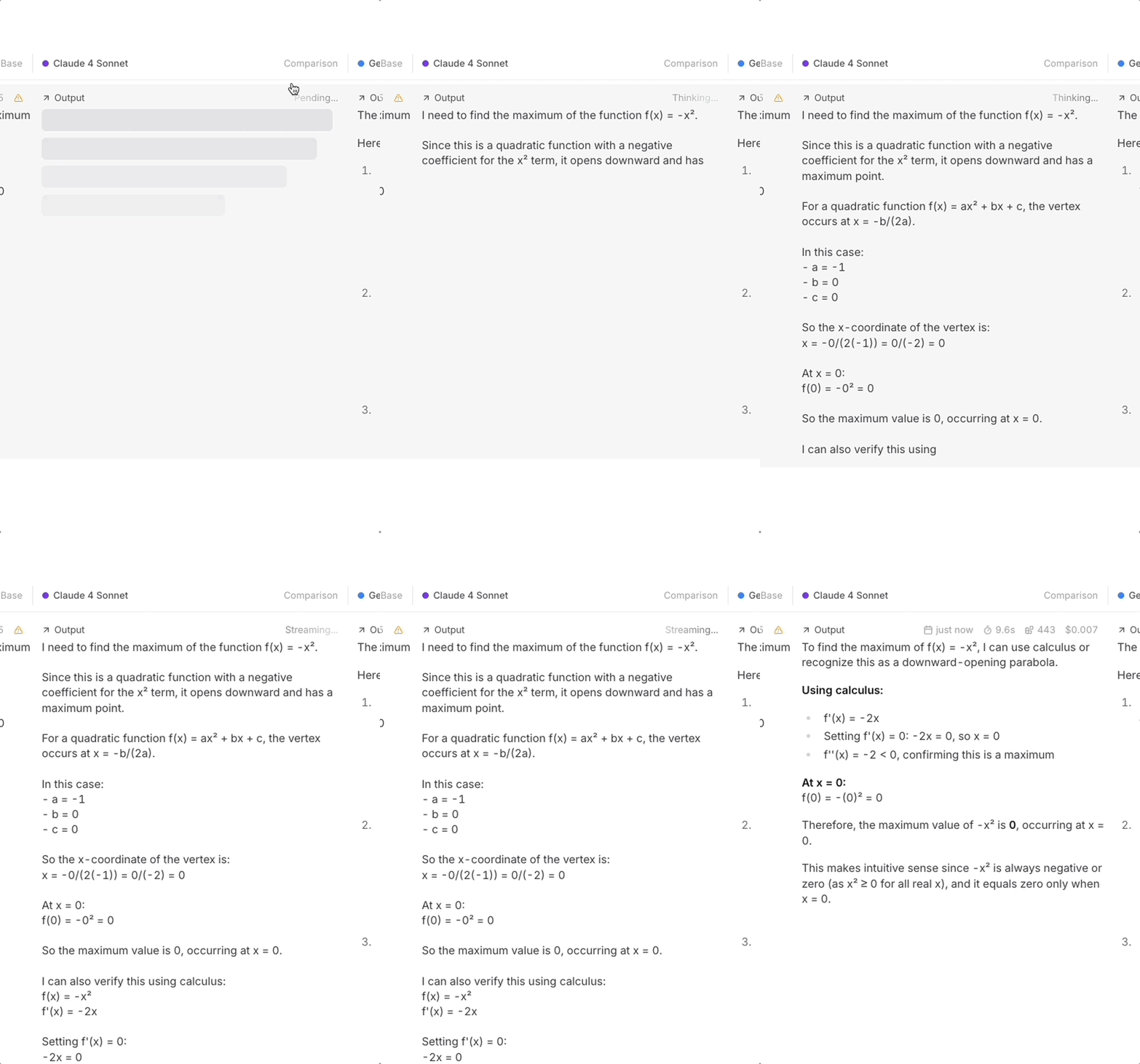
When you enable reasoning, models generate "thinking tokens" that show their step-by-step reasoning process. This is useful for complex tasks like math problems, logical reasoning, coding, and multi-step analysis.
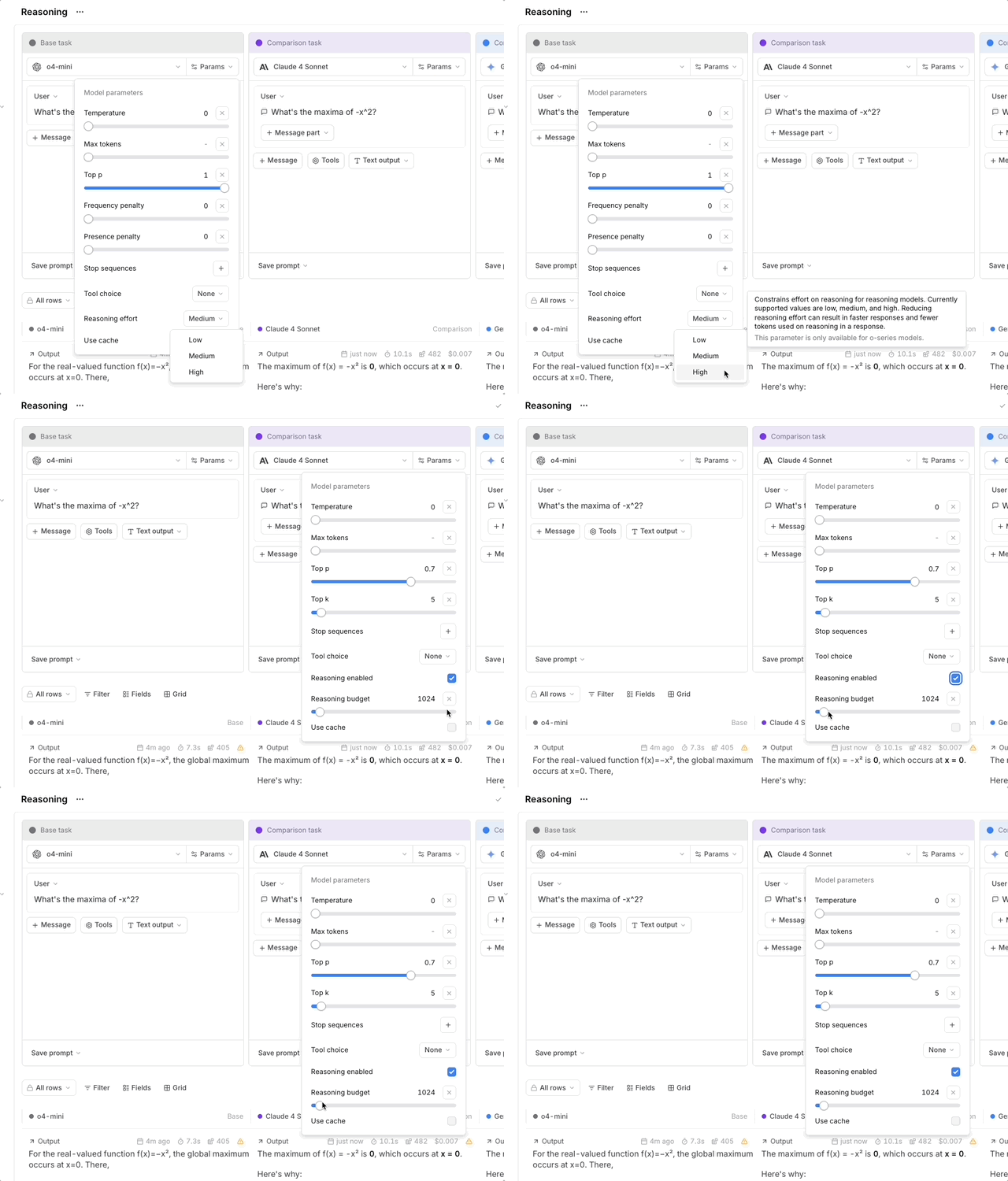
In playgrounds, you can configure reasoning parameters directly in the model settings.
To enable reasoning in a playground:
1. Select a reasoning-capable model (like `claude-3-7-sonnet-latest`, `o4-mini`, or `publishers/google/models/gemini-2.5-flash-preview-04-17` for Gemini via Vertex AI).
2. In the model parameters section, configure your reasoning settings:
* Set `reasoning_effort`. Supported values depend on the selected model. Most reasoning models accept `low`, `medium`, and `high`. Gemini 3 models in Google format also accept `minimal`.
* Or, for models that support a token budget, enable `reasoning_enabled` and specify a `reasoning_budget`.
3. Run your prompt to see reasoning in action.
Gemini 3 models in Google format use `reasoning_effort` only. The `reasoning_enabled` and `reasoning_budget` parameters do not apply, and the playground hides those controls when a Gemini 3 Google-format model is selected.
## Create custom table views
The **Playgrounds** page supports custom table views to save your preferred filters, column order, and display settings.
To create or update a custom table view:
1. Apply the filters and display settings you want.
2. Open the menu and select **Save view\...** or **Save view as...**.
Custom table views are visible to all project members. Creating or editing a table view requires the **Update** project permission.
## Set default table views
You can set default views at three levels:
* **Organization default**: Visible to all members when they open the page. This applies per page. For example, you can set separate organization defaults for Logs, Experiments, and Review. To set an organization default, you need the **Manage settings** organization permission (included by default in the **Owner** role). See [Access control](/admin/access-control) for details.
* **Project default**: Overrides the organization default for everyone viewing this project. To set a project default, you need the project-level **Update** permission. Project admins can set project defaults even without organization-level permissions. See [Access control](/admin/access-control) for details.
* **Personal default**: Overrides the project and organization defaults for you only. Personal defaults are stored in your browser, so they do not carry over across devices or browsers.
To set a default view:
1. Switch to the view you want by selecting it from the menu.
2. Open the menu again and hover over the currently selected view to reveal its submenu.
3. Choose **Set as personal default view**, **Set as project default view**, or **Set as organization default view**.
To clear a default view:
1. Open the menu and hover over the currently selected view to reveal its submenu.
2. Choose **Clear personal default view**, **Clear project default view**, or **Clear organization default view**.
Default view settings are mutually exclusive on a given view. Setting one type of default on a view automatically clears any other default that was previously set on the same view.
When a user opens a page, Braintrust loads the first match in this order: personal default, project default, organization default, then the standard "All ..." view (for example, "All logs view").
## Next steps
* [Add human feedback](/annotate/human-review) for structured review workflows
* [Test complex agents](/evaluate/remote-evals) in the playground via remote evals or sandboxes
* [Run experiments](/evaluate/run-evaluations) with the SDK or in the UI
* [Run in CI/CD](/evaluate/run-evaluations#run-in-ci-cd) to catch regressions automatically
* [Score production traces](/evaluate/score-online) with online scoring rules
 ## Create a playground
Go to [**
## Create a playground
Go to [**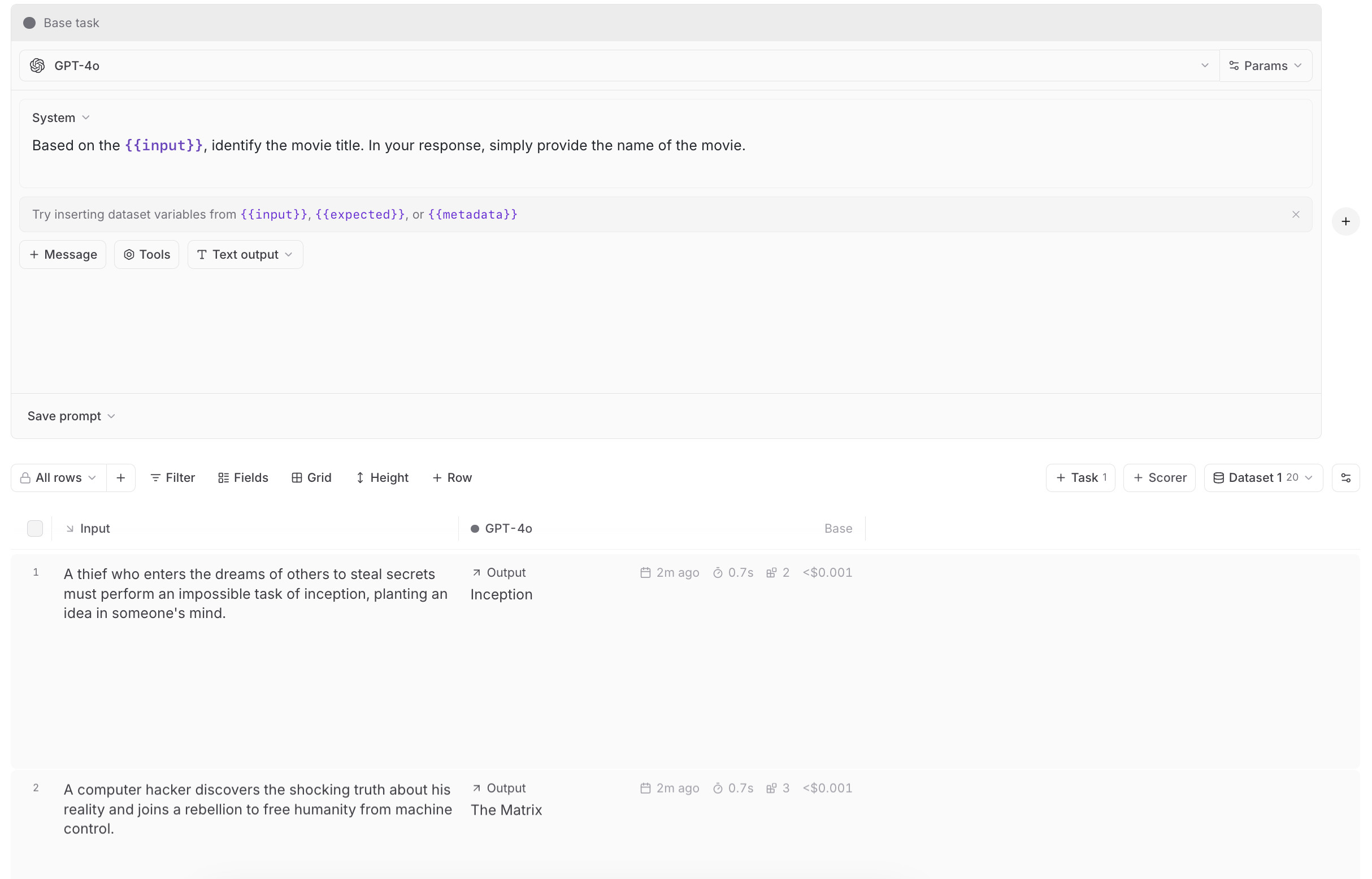 The playground supports [Mustache and Nunjucks templating](/evaluate/write-prompts#use-templating). Access nested fields like `{{input.formula}}`.
### Image attachments
When a dataset variable contains an array of attachments, the playground expands it into one image part per item. Add an **image** content part to your prompt and enter the variable name (e.g. `{{images}}`).
Array items can be Braintrust attachments, inline attachments, or plain URL strings.
### Scorers-as-tasks
When evaluating scorers, dataset inputs should match scorer convention: `{ input, expected, metadata, output }`. These fields are hoisted into global scope for easy reference.
Example scorer prompt:
```
Is {{output}} funny and concerning the same topic as {{expected}}?
```
Example dataset row:
```json theme={"theme":{"light":"github-light","dark":"github-dark-dimmed"}}
{
"input": {
"output": "Why did the chicken cross the road? To get to the other side!",
"expected": "Why's six afraid of seven? Because seven ate nine!"
},
"expected": {
"choice": 0,
"rationale": "Output is a clichéd joke about a different topic."
}
}
```
## Run evaluations
Select
The playground supports [Mustache and Nunjucks templating](/evaluate/write-prompts#use-templating). Access nested fields like `{{input.formula}}`.
### Image attachments
When a dataset variable contains an array of attachments, the playground expands it into one image part per item. Add an **image** content part to your prompt and enter the variable name (e.g. `{{images}}`).
Array items can be Braintrust attachments, inline attachments, or plain URL strings.
### Scorers-as-tasks
When evaluating scorers, dataset inputs should match scorer convention: `{ input, expected, metadata, output }`. These fields are hoisted into global scope for easy reference.
Example scorer prompt:
```
Is {{output}} funny and concerning the same topic as {{expected}}?
```
Example dataset row:
```json theme={"theme":{"light":"github-light","dark":"github-dark-dimmed"}}
{
"input": {
"output": "Why did the chicken cross the road? To get to the other side!",
"expected": "Why's six afraid of seven? Because seven ate nine!"
},
"expected": {
"choice": 0,
"rationale": "Output is a clichéd joke about a different topic."
}
}
```
## Run evaluations
Select 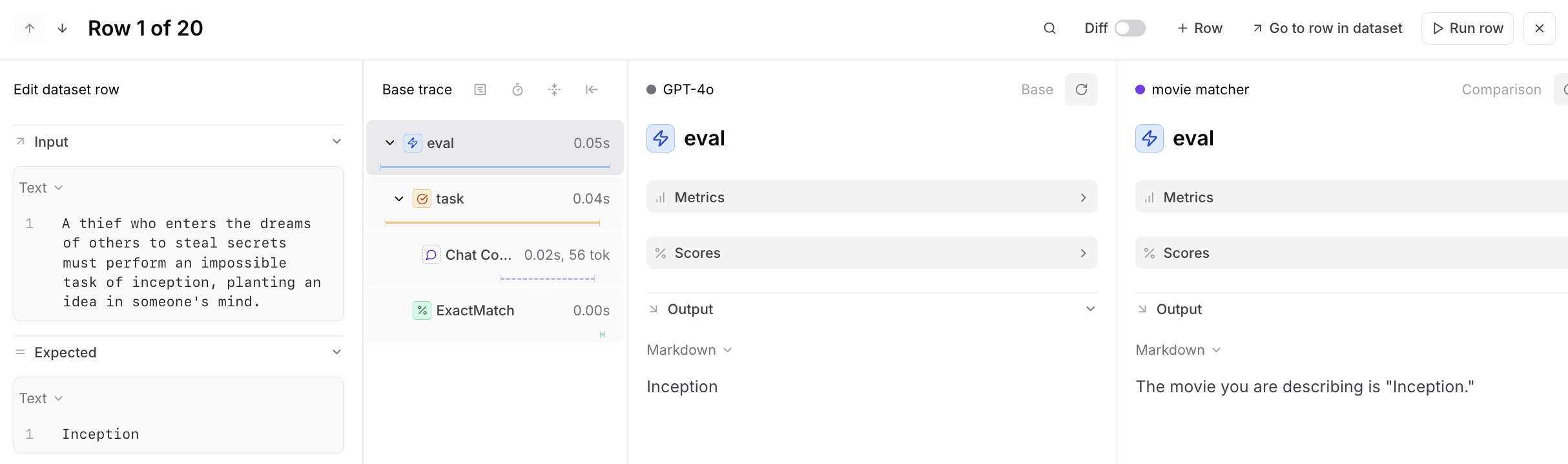 From this view, select
  ## Compare with diff mode
Enable the diff toggle to visually compare variations across models, prompts, or workflows:
Diff mode highlights:
* Output differences between tasks
* Score changes
* Timing and token usage variations
When comparing against a base task, each comparison task's column header also shows a comparison grade pill (Improvement, Regression, Tradeoff, or Tie). See [Assess overall impact](/evaluate/compare-experiments#assess-overall-impact) for the grading rubric.
## Save as experiment
Playground runs overwrite previous results on each run. When you've found a configuration worth keeping, select **+ Experiment** to promote it to an immutable snapshot. See [Run experiments](/evaluate/run-evaluations#promote-from-a-playground) for details.
## Share playgrounds
Collaborate by sharing playground URLs with teammates. They'll see the same configuration and can run their own evaluations or make changes. Playgrounds automatically synchronize in real-time.
Your collaborators must be members of your organization to view the playground. You can invite users from the settings page.
## Best practices
**Start simple**: Test one prompt or model first. Add comparisons once the base works.
**Use representative data**: Build datasets from production logs or known edge cases.
**Compare systematically**: Change one variable at a time (model, temperature, prompt wording) to isolate effects.
**Look for patterns**: Group by metadata fields to see which input types cause issues.
**Iterate quickly**: Playgrounds excel at rapid experimentation. Save experiments only when you need permanent records.
## Advanced options
### Append dataset messages
You may have additional messages in a dataset that you want to append to a prompt. This option lets you specify a path to a messages array in the dataset. For example, if `input` is specified as the appended messages path and a dataset row has the following input, all prompts in the playground will run with additional messages:
```json theme={"theme":{"light":"github-light","dark":"github-dark-dimmed"}}
[
{
"role": "assistant",
"content": "Is there anything else I can help you with?"
},
{
"role": "user",
"content": "Yes, I have another question."
}
]
```
To append messages from a dataset to your prompts, open the advanced settings menu next to your dataset selection and enter the path to the messages you want to append.
## Compare with diff mode
Enable the diff toggle to visually compare variations across models, prompts, or workflows:
Diff mode highlights:
* Output differences between tasks
* Score changes
* Timing and token usage variations
When comparing against a base task, each comparison task's column header also shows a comparison grade pill (Improvement, Regression, Tradeoff, or Tie). See [Assess overall impact](/evaluate/compare-experiments#assess-overall-impact) for the grading rubric.
## Save as experiment
Playground runs overwrite previous results on each run. When you've found a configuration worth keeping, select **+ Experiment** to promote it to an immutable snapshot. See [Run experiments](/evaluate/run-evaluations#promote-from-a-playground) for details.
## Share playgrounds
Collaborate by sharing playground URLs with teammates. They'll see the same configuration and can run their own evaluations or make changes. Playgrounds automatically synchronize in real-time.
Your collaborators must be members of your organization to view the playground. You can invite users from the settings page.
## Best practices
**Start simple**: Test one prompt or model first. Add comparisons once the base works.
**Use representative data**: Build datasets from production logs or known edge cases.
**Compare systematically**: Change one variable at a time (model, temperature, prompt wording) to isolate effects.
**Look for patterns**: Group by metadata fields to see which input types cause issues.
**Iterate quickly**: Playgrounds excel at rapid experimentation. Save experiments only when you need permanent records.
## Advanced options
### Append dataset messages
You may have additional messages in a dataset that you want to append to a prompt. This option lets you specify a path to a messages array in the dataset. For example, if `input` is specified as the appended messages path and a dataset row has the following input, all prompts in the playground will run with additional messages:
```json theme={"theme":{"light":"github-light","dark":"github-dark-dimmed"}}
[
{
"role": "assistant",
"content": "Is there anything else I can help you with?"
},
{
"role": "user",
"content": "Yes, I have another question."
}
]
```
To append messages from a dataset to your prompts, open the advanced settings menu next to your dataset selection and enter the path to the messages you want to append.
 ### Max concurrency
The maximum number of tasks/scorers that will be run concurrently in the playground. This is useful for avoiding rate limits (429 - Too many requests) from AI/MCP providers.
### Strict variables
When this option is enabled, evaluations will fail if the dataset row does not include all of the variables referenced in prompts.
## Reasoning models
### Max concurrency
The maximum number of tasks/scorers that will be run concurrently in the playground. This is useful for avoiding rate limits (429 - Too many requests) from AI/MCP providers.
### Strict variables
When this option is enabled, evaluations will fail if the dataset row does not include all of the variables referenced in prompts.
## Reasoning models
 To enable reasoning in a playground:
1. Select a reasoning-capable model (like `claude-3-7-sonnet-latest`, `o4-mini`, or `publishers/google/models/gemini-2.5-flash-preview-04-17` for Gemini via Vertex AI).
2. In the model parameters section, configure your reasoning settings:
* Set `reasoning_effort`. Supported values depend on the selected model. Most reasoning models accept `low`, `medium`, and `high`. Gemini 3 models in Google format also accept `minimal`.
* Or, for models that support a token budget, enable `reasoning_enabled` and specify a `reasoning_budget`.
3. Run your prompt to see reasoning in action.
To enable reasoning in a playground:
1. Select a reasoning-capable model (like `claude-3-7-sonnet-latest`, `o4-mini`, or `publishers/google/models/gemini-2.5-flash-preview-04-17` for Gemini via Vertex AI).
2. In the model parameters section, configure your reasoning settings:
* Set `reasoning_effort`. Supported values depend on the selected model. Most reasoning models accept `low`, `medium`, and `high`. Gemini 3 models in Google format also accept `minimal`.
* Or, for models that support a token budget, enable `reasoning_enabled` and specify a `reasoning_budget`.
3. Run your prompt to see reasoning in action.
 ## Create custom table views
The **Playgrounds** page supports custom table views to save your preferred filters, column order, and display settings.
To create or update a custom table view:
1. Apply the filters and display settings you want.
2. Open the
## Create custom table views
The **Playgrounds** page supports custom table views to save your preferred filters, column order, and display settings.
To create or update a custom table view:
1. Apply the filters and display settings you want.
2. Open the