> ## Documentation Index
> Fetch the complete documentation index at: https://braintrust.dev/docs/llms.txt
> Use this file to discover all available pages before exploring further.
# Add labels and corrections
> Go beyond numeric scores by tagging traces, adding expected values, and writing corrections. Use these annotations to organize data and build higher-quality datasets.
Beyond numeric scores, you can annotate traces with tags, comments, expected values, and metadata to provide context and build better datasets. These annotations flow between logs, datasets, and experiments.
After reviewing and scoring traces, use tags, comments, and corrections to further organize and enrich your data for dataset creation.
## Apply tags
Tags categorize and organize traces across your project. Use tags to mark traces for review, indicate status, or group related examples.
You can also [apply tags to entire datasets](/annotate/datasets/manage#tag-and-star-datasets) to organize them in the datasets list.
1. Select one or more traces.
2. Click ** Tag** in the toolbar.
3. Select or create tags to apply.
Tags are configured in [project tag settings](/admin/projects#add-tags) and shared across all objects — logs, experiments, dataset records, and entire datasets.
Include tags when logging or providing feedback:
```typescript theme={"theme":{"light":"github-light","dark":"github-dark-dimmed"}}
import { initLogger } from "braintrust";
const logger = initLogger({ projectName: "My Project" });
// When logging
logger.traced(async (span) => {
span.log({
input,
output: result,
tags: ["user-action", "triage"],
});
});
// When logging feedback
logger.logFeedback({
id: spanId,
scores: { correctness: score },
tags: ["needs-review"],
});
```
```python theme={"theme":{"light":"github-light","dark":"github-dark-dimmed"}}
from braintrust import init_logger
logger = init_logger(project="My Project")
# When logging
with logger.start_span() as span:
span.log(input=input, output=result, tags=["user-action", "triage"])
# When logging feedback
logger.log_feedback(
id=span_id,
scores={"correctness": score},
tags=["needs-review"],
)
```
Tags can be applied to any span in a trace. When viewing traces, tags from all spans are aggregated and displayed together at the trace level. When you log additional tags, they are automatically merged (union), rather than replaced.
When filtering logs by tags, use `ANY_SPAN(tags INCLUDES 'tag-name')` in SQL queries to find traces where any span contains the tag. This is useful when combining tag filters with other span-level filters like scores. See [Analyze based on tags and scores](/reference/sql#analyze-based-on-tags-and-scores) for examples.
## Add comments
Comments provide free-form context and explanations. Use comments to explain why a trace succeeded or failed, note patterns or edge cases, share insights with teammates, or document corrections.
Open any trace and add comments in the trace view:
Copy links to comments to share with teammates. Comments are searchable using the filter menu.
Mention team members in comments to notify them and draw their attention to specific traces. Type `@` followed by their name and select from the autocomplete dropdown. Mentioned users receive email notifications with direct links to the specific row and comment.
Include comments when logging feedback:
```typescript theme={"theme":{"light":"github-light","dark":"github-dark-dimmed"}}
logger.logFeedback({
id: spanId,
comment: "User reported incorrect information in the response",
scores: { correctness: 0 },
});
```
```python theme={"theme":{"light":"github-light","dark":"github-dark-dimmed"}}
logger.log_feedback(
id=span_id,
comment="User reported incorrect information in the response",
scores={"correctness": 0},
)
```
## Update expected values
Expected values define the correct or ideal output for a given input. Update expected values to provide ground truth for evaluation, document user corrections, specify multiple acceptable answers, or label categorical data.
Click any expected field in a trace to edit it directly. You can:
* Enter structured JSON data
* Use form-based editing (if schemas are defined)
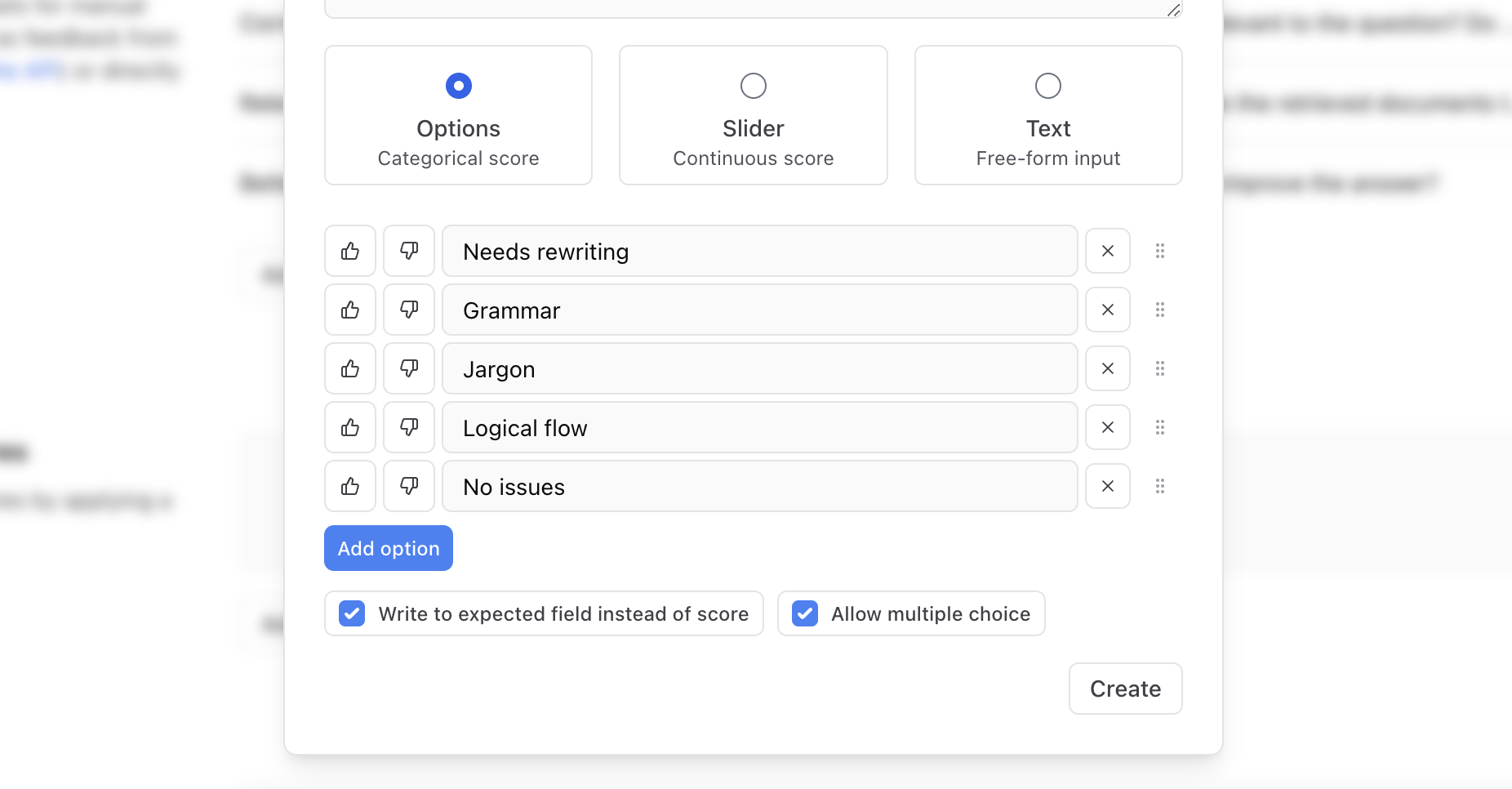
* Write categorical labels via human review scores
* Copy expected values from other spans
You can also [create human review scores](/annotate/human-review#configure-review-scores) when reviewing traces.
Include expected values when logging feedback or updating datasets:
```typescript theme={"theme":{"light":"github-light","dark":"github-dark-dimmed"}}
// Update via feedback
logger.logFeedback({
id: spanId,
expected: { answer: "The correct answer is 42" },
comment: "User provided correction",
});
// Update dataset record
dataset.update({
id: recordId,
expected: { answer: "Updated expected value" },
});
```
```python theme={"theme":{"light":"github-light","dark":"github-dark-dimmed"}}
# Update via feedback
logger.log_feedback(
id=span_id,
expected={"answer": "The correct answer is 42"},
comment="User provided correction",
)
# Update dataset record
dataset.update(
id=record_id,
expected={"answer": "Updated expected value"},
)
```
## Add metadata
Metadata provides structured context for filtering and analysis. Common metadata includes user IDs and session IDs, feature flags or A/B test variants, geographic or demographic information, request source or client type, and custom business context.
Add metadata when logging or via feedback:
```typescript theme={"theme":{"light":"github-light","dark":"github-dark-dimmed"}}
// When logging
span.log({
input,
output: result,
metadata: {
user_id: userId,
feature_variant: "test-a",
request_source: "mobile-app",
},
});
// Via feedback
logger.logFeedback({
id: spanId,
metadata: {
reviewer: "jane@company.com",
review_date: new Date().toISOString(),
category: "edge-case",
},
});
```
```python theme={"theme":{"light":"github-light","dark":"github-dark-dimmed"}}
# When logging
span.log(
input=input,
output=result,
metadata={
"user_id": user_id,
"feature_variant": "test-a",
"request_source": "mobile-app",
},
)
# Via feedback
logger.log_feedback(
id=span_id,
metadata={
"reviewer": "jane@company.com",
"review_date": datetime.now().isoformat(),
"category": "edge-case",
},
)
```
## Filter by annotations
Use filters to find annotated traces:
```sql theme={"theme":{"light":"github-light","dark":"github-dark-dimmed"}}
WHERE tags INCLUDES "needs-review"
```
```sql theme={"theme":{"light":"github-light","dark":"github-dark-dimmed"}}
WHERE comment IS NOT NULL
```
```sql theme={"theme":{"light":"github-light","dark":"github-dark-dimmed"}}
WHERE metadata.category = "edge-case"
```
```sql theme={"theme":{"light":"github-light","dark":"github-dark-dimmed"}}
WHERE expected IS NOT NULL
```
Combine filters to build precise queries for dataset curation.
## Next steps
* [Build datasets](/annotate/datasets/create#promote-traces-from-logs) from annotated traces
* [Add human feedback](/annotate/human-review) for structured scoring
* [Run evaluations](/evaluate/run-evaluations) using labeled datasets
* [Export data](/annotate/export) with annotations intact